Generating an image is often just the first step. To make your AI art suitable for print, merchandise, or high-end digital displays, you need to enter the post-processing phase. This is where a good image becomes a great one.
AI Upscaling
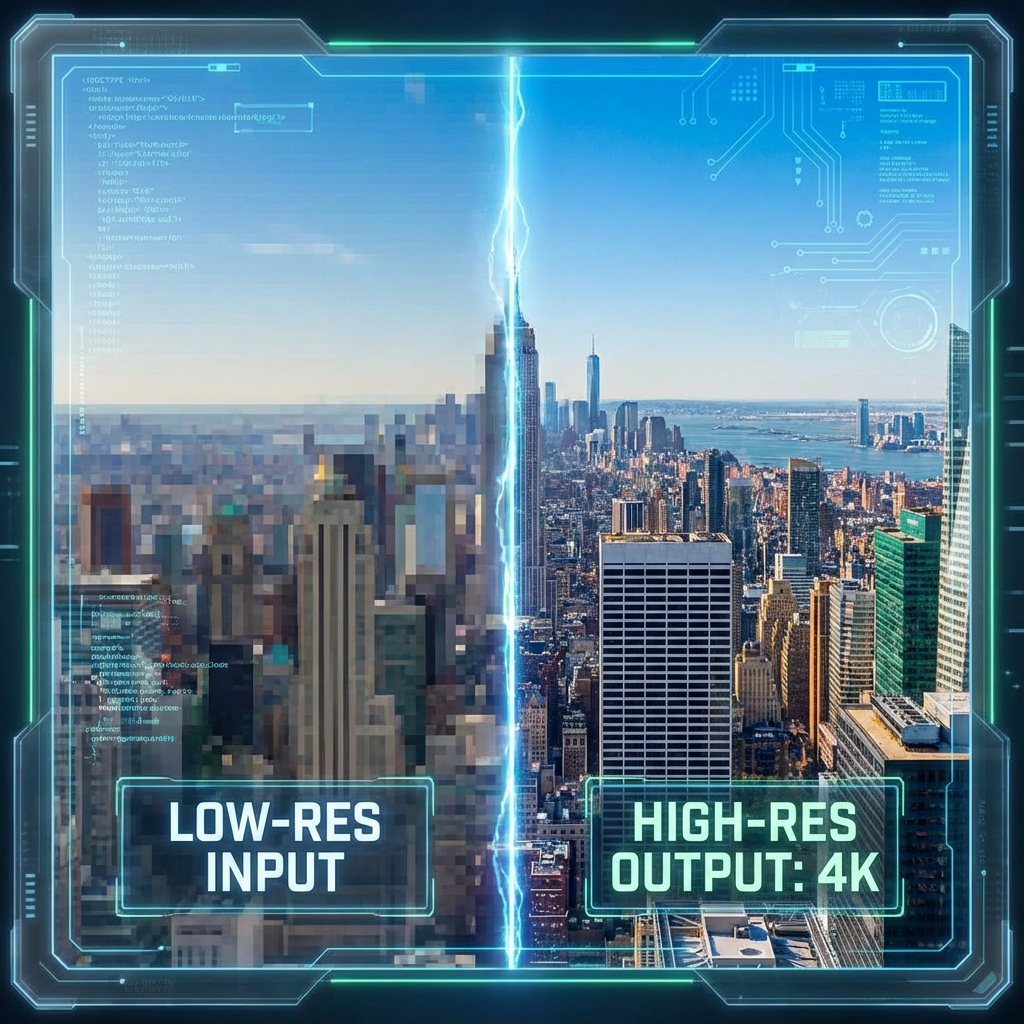
Most AI generators output images at around 1024x1024 pixels. This is fine for Instagram, but too small for a poster. AI upscalers use deep learning to increase resolution while adding imaginary detail to keep edges sharp. Tools like Real-ESRGAN or dedicated software like Topaz Gigapixel can turn a modest generation into a 4k or 8k behemoth ready for print.
Inpainting and Fixing Artifacts
AI isn't perfect. You might love an image but hate the six fingers it put on a hand. Inpainting allows you to mask out just the bad part and tell the AI to regenerate only that area. This surgical approach saves you from re-rolling the entire prompt and losing the composition you loved.
Color Grading
AI outputs can sometimes feel flat or have a specific color cast depending on the model. Bringing your image into Photoshop or Lightroom for color grading makes a huge difference. Adjusting the curves, increasing vibrance, and adding a slight vignette can focus the viewer's eye and unify the color palette.
Overpainting
For the truly dedicated, overpainting is the ultimate post-processing step. This involves taking the AI image into a digital painting software and manually painting over details, fixing hair strands, or enhancing eyes with a tablet. This hybrid workflow combines the speed of AI with the intentionality of human artistry.
Don't settle for the raw output. Treat your AI generations as digital negatives that are waiting to be developed into their final form.